The Plug-ins screen
Open Plug-ins from the main menu (it is also reachable from Settings on Linux and Steam Deck). It has three tabs: Browse, Installed and Load order.
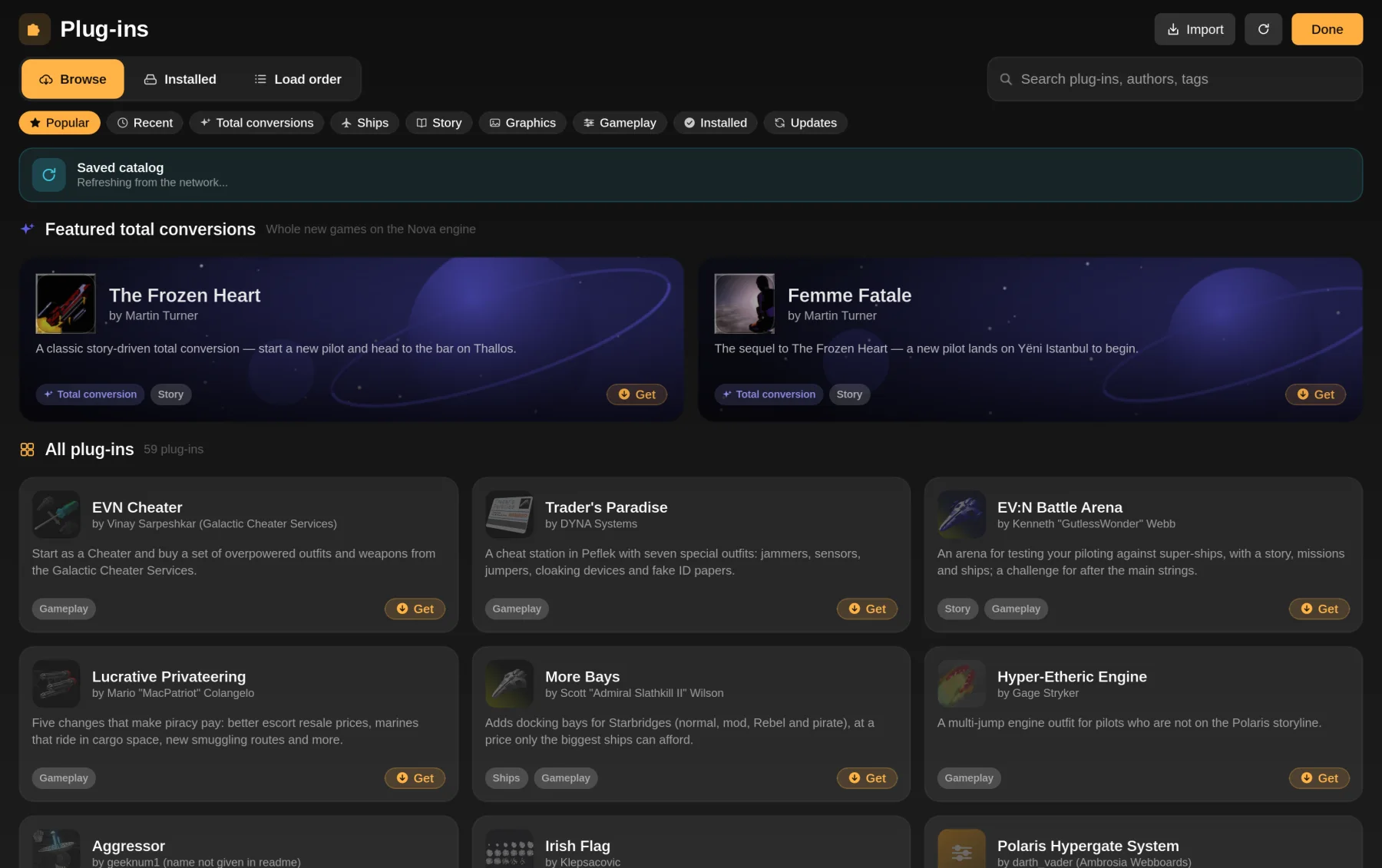
- Browse is the community catalog: search, filter chips (Popular, Recent, Total conversions, Ships, Story, Graphics, Gameplay, Installed, Updates) and a card for each plug-in with a detail page. A copy of the catalog is kept for offline browsing.
- Installed lists what you have, with enable switches, reveal and delete.
- Load order shows the order plug-ins load in (see below).
You can also browse the same catalog on the website: Plug-in catalog.
Installing from the catalog
Find a plug-in
Search, or use a filter chip. Open a card for the description, author, size and screenshots.
Tap Install
The app downloads the file straight from the author's own link (or the project's archive), checks it, unpacks it and puts it in your plug-ins folder. If the plug-in depends on another one, that is installed first.
Apply
Changes take effect by reloading the game data, and a loading screen shows while that runs. The Apple app reloads after each change. On Linux and Steam Deck changes are batched and applied when you press Apply, leave the screen, or an install finishes.
Downloads are HTTPS only, and the app never copies or mirrors files itself. When a new version is released, the card shows an Update button.
You need EV Nova's data first. Plug-ins sit on top of the original game's data files, which you supply yourself. See Getting started.
Importing your own files
Use Import (top bar) to add plug-ins you downloaded elsewhere. NOVA Swift reads:
- Windows-style
.rezand.ndatfiles; - classic Mac plug-ins with a resource fork, including old
.sit(StuffIt),.hqx(BinHex) and related archives, which are unpacked with the resource fork kept; .ziparchives and plug-in folders.
The Linux and Steam Deck Import dialog is labelled for .zip, .rez, .ndat or a folder. StuffIt X (.sitx) is proprietary and is not supported. On iPhone, iPad and Apple TV, files can also come in from the Files app, the share sheet or AirDrop.
Tip. Imported plug-ins show an Imported badge and can be deleted. Plug-ins that live in the game's own "Nova Plug-ins" folder are marked Built in and are read-only here.
Enabling, disabling and load order
By default NOVA Swift follows the original game: every installed plug-in loads automatically, in alphabetical order, and later plug-ins override earlier ones where they define the same resource. To toggle or reorder individual plug-ins, turn on the Manual plug-in order enhancement in Settings, under Enhancements (it is off by default). Then each plug-in gets an enable switch and Up and Down buttons (or drag to reorder) on the Load order tab.
If two plug-ins fight over the same ship or system, the one lower in the order wins. Put the plug-in you care about last.
Total conversions
A total conversion (TC) replaces the whole scenario, not just a bit of it. While a TC is on, only its own plug-ins load, as in the original game. To play one:
Install and switch it on
From the Plug-ins screen. Only one TC can be active, and it is the only plug-in type that can be switched on or off without Manual plug-in order.
Start a new pilot
With the conversion switched on, create a new pilot so you start in its scenario.
Optional add-ons
The Installed tab can show an Add-ons for list for the selected TC. Plug-ins you add there load after the conversion's own files, in the order shown. The app flags how likely each is to work with it.
HD art packs
Plug-ins can include high-resolution sprites and 3D models in an optional layer that the original game ignores. It is shipped as a .nsx folder (with a manifest.json), or embedded in the plug-in file. Gameplay, hit boxes and frame counts never change.
- HD art is off by default. Turn it on in Settings, under Graphics, as HD graphics from plug-ins. If HD art turns up while it is off, the game asks once if you want to enable it.
- Put a
.nsxfolder inside the plug-in's folder, or loose in your plug-ins folder for a standalone pack. It is found up to four folders deep, and a pack inside a plug-in turns on and off with that plug-in. - HD art and 3D models are currently an Apple-platform feature. Anything not ready draws the classic sprite.
Plug-ins in multiplayer
Players in a game must have the same gameplay plug-ins, matched by content hash. Plug-ins that only change art, sound, music, movies, fonts or text are cosmetic and never block a join. A plug-in that mixes both counts as gameplay.
If a server needs plug-ins you do not have, Linux and Steam Deck offer Install & Join when they are all in the catalog. Otherwise the join screen lists what to install, update or disable. Details are in Join & host games.
Where the files live
Imports and downloads go to a plug-ins folder inside the app's own data folder. On Linux and Steam Deck the data folder is below, with plug-ins in its Plug-ins subfolder.
The app keeps its plug-ins in its own container, so use Import or the catalog rather than copying files by hand. On iPhone, iPad and Apple TV, bring files in through Import.
~/.local/share/NovaSwift/Plug-ins # or $XDG_DATA_HOME/NovaSwift/Plug-insA "Nova Plug-ins" folder inside or next to your chosen EV Nova data folder is also scanned, which matches the original install layout.
Same as Linux, in Desktop or Game mode: ~/.local/share/NovaSwift/Plug-ins. Use the Import button in Game mode and the file picker.
%APPDATA%\NovaSwift\Plug-insThis is where the Windows build looks.
Suggest a plug-in for the catalog
The catalog is a list in a public GitHub repo, SirStig/NovaSwift-Plugins. The app reads its catalog.json. There are no plug-in files in the repo; each entry points at a public download. Rules:
- Link to a public, direct download. The link must open the file itself (
.zip,.rez,.ndat, or a classic.sit,.hqx,.seaor.bin), not a web page with a button, and nothing behind a login, captcha or click-through. HTTPS only. - Do not rehost without the author's permission. That includes icons and screenshots.
- No EV Nova base data and no art taken from it. Plug-ins that need the base game are fine.
- Self-hosted copies are rare. The project only hosts a copy (marked
rehosted) when the author's own readme says it may be redistributed, and the entry must quote those words.
To add one, fork the repo, add an entry to catalog.json, run python3 scripts/validate.py, and open a pull request. Not comfortable with JSON? Open a "Plug-in request" issue instead. The field list is in Making a plug-in. Authors can ask for an entry to be removed or corrected at any time.